ThemeLooks Support Team
We have double checked our WHMCS template and we didn’t find any issue like this. You could check out our WHMCS template, here http://billing.ywhmcs.com/?systpl=ColorHostWP
Moreover, we are providing the WHMCS Template by customizing WHMCS default six Template’s header, footer and color ONLY based on our Theme. That means, we are not responsible and unable to support for WHMCS system issue. This is because, we didn’t do anything in the system, we just customized the WHMCS default six template’s header, footer and color ONLY based on our Theme.
Best Regards,
ThemeLooks Support Team
ThemeLooks Support TeamHi Daniel,
We are really sorry to say that, we are unable to assist you in this issue. This is because, the issue raised for the Latest version (v7.5) of WHMCS Default Template Six.
In this issue, you could contact with WHMCS support to report them about the issue to fix, because it’s conflicted with WHMCS Bridge Plugin or you could ask WHMCS Bridge Plugin support for a possible solution.
Please Note: We are not the developer of the WHMCS system or WHMCS Default Template Six or WHMCS Bridge Plugin.
Best Regards,
ThemeLooks Support Team
 ThemeLooks Support Team.
ThemeLooks Support Team
ThemeLooks Support Team.
ThemeLooks Support Team.
ThemeLooks Support TeamIn this issue, you could use the CSS below to change the size of the banner.
.page--header--section {
    height: 500px;
}
Please Note: You have to adjust the height based on your needs.
Best Regards,
ThemeLooks Support Team
ThemeLooks Support TeamHi Mohammed,
We are really sorry to say that, we are unable to assist you in this issue.
This is because, customization service does not include item support.
In this issue, you could search on google.com to learn about How to insert/add Google verification code in a WordPress Theme?
Best Regards,
ThemeLooks Support Team
ThemeLooks Support TeamHi Murat,
Sorry for the inconvenience.
Please use the CSS below in the custom.css file to fix the issue.
.form-group {
    margin-bottom: 20px;
}
Best Regards,
ThemeLooks Support Team
ThemeLooks Support TeamPlease provide your wp-admin access using our Envato Market (themeforest) profile contact form https://themeforest.net/user/themelooks#contact (screenshot as reference http://prntscr.com/gkmr2r ) including this support topic link as reference to review the issue to fix.
Please Note: This is a public forum. So, don’t send your credential here. It can break your your website security.
Best Regards,
ThemeLooks Support Team
ThemeLooks Support TeamHi Andrés,
This is just an HTML Template. So, you have to change the menu and footer manually in all of the HTML files and there has no automatic system.
Best Regards,
ThemeLooks Support Team
ThemeLooks Support TeamDid you watched this video tutorial about “How to Setup WHMCS Bridge Page on HostWHMCS – Responsive Hosting and WHMCS WordPress Theme”? https://www.youtube.com/watch?v=AlPJOLmGwLI&t=0s&list=PLbmIKrgYlRbpUN1Y2pG2-cqTdXgvUlW6d&index=8
However, you could follow the steps below.
1. Install the WHMCS Bridge Plugin
2. Settings up the WHMCS Bridge Plugin to follow the screenshot http://prntscr.com/j44at6 http://prntscr.com/j44b6y
3. Edit WHMCS Bridge page form All Pages (There will be two WHMCS Bridge pages, you could delete one)
4. Select Whmcs Page as Template from the bottom right option http://prntscr.com/j44cj2
Best Regards,
ThemeLooks Support Team
ThemeLooks Support TeamHi Mohammed,
Please watch this video tutorial about “How to Setup WHMCS Bridge Page on HostWHMCS – Responsive Hosting and WHMCS WordPress Theme” https://www.youtube.com/watch?v=AlPJOLmGwLI&t=0s&list=PLbmIKrgYlRbpUN1Y2pG2-cqTdXgvUlW6d&index=8
Moreover, watch the playlist to customize the theme https://www.youtube.com/playlist?list=PLbmIKrgYlRbpUN1Y2pG2-cqTdXgvUlW6d
Best Regards,
ThemeLooks Support Team
ThemeLooks Support Team1. Install the WordPress Theme on your server main/root path/directory. Example: http://mydomain/
2. Install the WHMCS on your server sub-directory/path like as http://mydomain/clientarea to follow their Documentation https://docs.whmcs.com/Documentation_Home
3. Connect your WHMCS in WordPress using WHMCS Bridge Plugin. Watch this video tutorial https://www.youtube.com/watch?v=AlPJOLmGwLI&t=0s&list=PLbmIKrgYlRbpUN1Y2pG2-cqTdXgvUlW6d&index=8
All of these are very basic things to do. If you are unable to understand and unable to do this by yourself, then you could hire someone else.
Best Regards,
ThemeLooks Support Team
ThemeLooks Support TeamHi Andrés,
You will get all of the header content including Menu in the header.tpl file and all of the footer content in the footer.tpl file to change the content. Moreover, you will able to change the color code from the css/theme/theme-color-1.css file.
Best Regards,
ThemeLooks Support Team
ThemeLooks Support Team1. Install the Theme on your server main/root path/directory
2. Install the WHMCS on your server sub-directory/path like as http://www.yourdomain.com/clientarea to follow their Documentation https://docs.whmcs.com/Documentation_Home
3. Connect your WHMCS in WordPress using WHMCS Bridge Plugin. Watch this video tutorial https://www.youtube.com/watch?v=AlPJOLmGwLI&t=0s&list=PLbmIKrgYlRbpUN1Y2pG2-cqTdXgvUlW6d&index=8
Best Regards,
ThemeLooks Support Team
ThemeLooks Support TeamWe are really sorry to say that, installation & customization services does not include item support.
However, we could provide you some suggestion based on your inquiry.
First of all, you have to install your own WHMCS (by purchasing a WHMCS license) anywhere in your hosting server. After then, you could connect your WHMCS in WordPress using whmcs bridge plugin OR you could install & use the provided WHMCS Template in your WHMCS to use separately to get all of the things like our demo. Moreover, you need to link up all of your products/services (buy now link) to your WHMCS.
Moreover, please learn more our full support policy (item support includes & not includes), here https://www.themelooks.com/support/support-policy/ before post a topic or ask for support.
Best Regards,
ThemeLooks Support Team
ThemeLooks Support TeamPlease don’t forget to give us ‘rating and review’ (on https://themeforest.net/downloads ), if you like our template and our support too. It will give us inspiration and make us more ‘happy’ to support.
Best Regards,
ThemeLooks Support Team
ThemeLooks Support TeamHi Mohammed,
You just missed the directory URL.
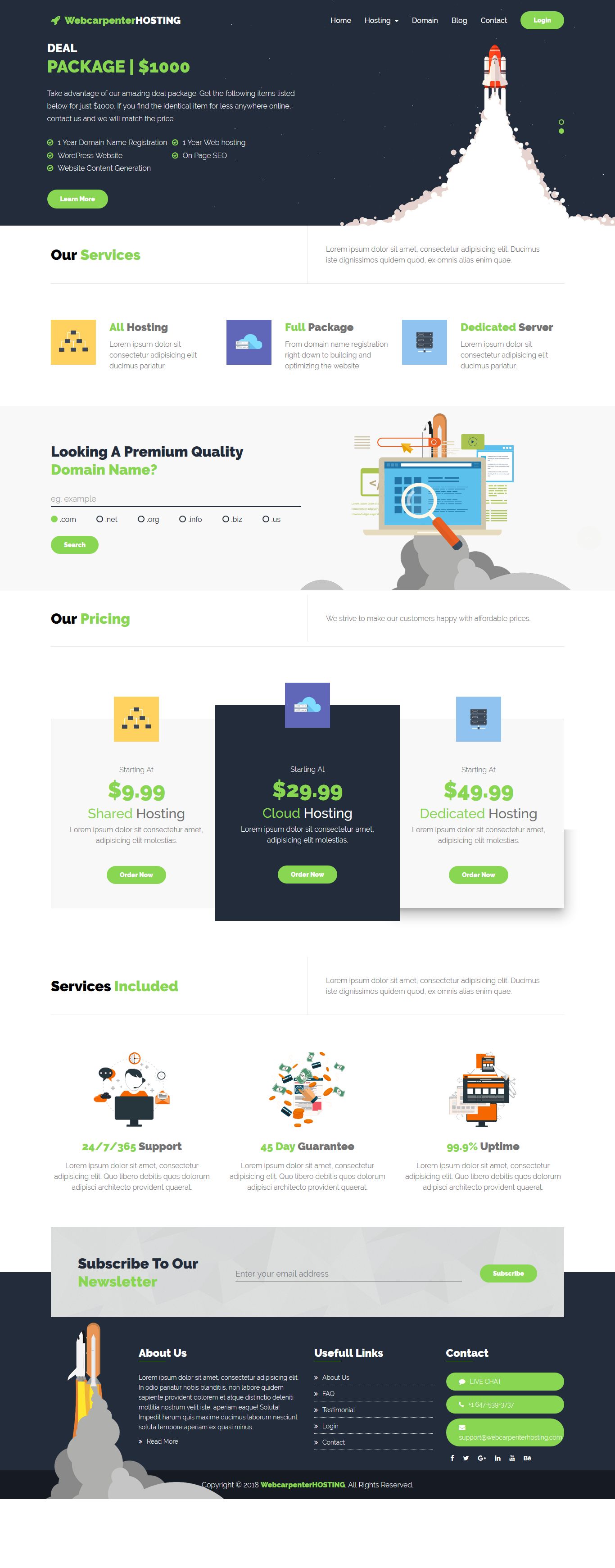
We have seen that, everything is working perfectly in your website https://webcarpenterhosting.com/ Also, you have edited/updated/customized the website content. Here is the screenshot as reference http://easycaptures.com/fs/uploaded/1100/3667539403.jpg Moreover, this is your wp-admin URL https://webcarpenterhosting.com/wp-admin
Best Regards,
ThemeLooks Support Team